2. Installing Synclias
Let’s get Synclias running!
Categories:
Get and Set the Config Files
Get the Files
- Most users only need the docker-compose.yaml file and sample-env , available at:
- That should be enough for most users, just the two files.
- If you’d like the full source, it’s available on Github
Configure your Install
- Copy the example-env file to .env (Note that’s <dot>env)
- Edit the file, some settings will need to be changed
- Looking at them one at a time:
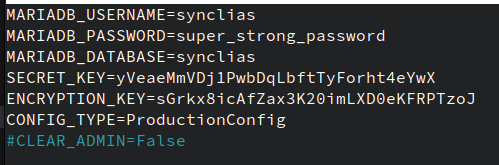
| Line | Meaning | Suggestion |
|---|---|---|
| MARIADB_USERNAME | Database Username | synclias |
| MARIADB_PASSWORD | Database Password | Anything you want (In testing, I’ve had problems with “-” in the password) |
| MARIADB_DATABASE | Database Name | synclias |
| SECRET_KEY | Browser Data Encryption Key | See below |
| ENCRYPTION_KEY | Database Entry Encryption Key | See below |
| CONFIG_TYPE | ProductionConfig | Leave as is |
| #CLEAR_ADMIN | <Leave as is/> | Used for resetting admin password |
Secret and Encryption Keys
During the early releases, there’s a limitation on these:
- Exactly 32 Characters long
- Uppercase, lowercase and numbers only Remember when you put them in, you don’t need quote marks around them, just the plain string
Sorry!
I know this is a pain, I’d suggest a password generator, such as the one at - 1PasswordYou should end up with something like this:
Starting it Up
Almost there!
Just run
docker compose up -d
And let it all come up.
Once it’s working, you can access it at http://<docker-host>:8000 or http://localhost:8000 if running locally
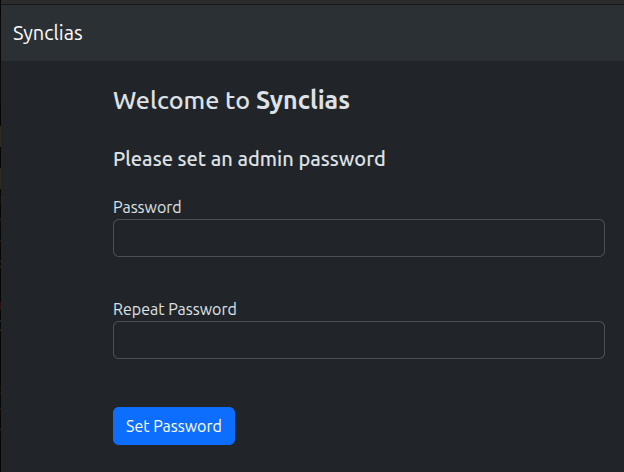
If you get a page like this, set a password and you’re all set to start configuring!
Next Steps:Configuring App Settings
Troubleshooting
Generally, the only issue that’s occured during testing for deploy this far is that the web/worker/beat containers won’t start up, complaining about MySQL denies
- This is normal during database startup, especially the first time
- There are healthchecks to prevent this, but some still slip through
- Give it a couple of minutes to retry
- If, after a few minutes, you’re still having problems:
- Stop the stack:
docker compose down
- Find the database server name
docker ps -a
- Delete the database server
docker rm <database name - probably synclias-db-1>
- Find the database volume
docker volume ls
- Be careful, and delete the volume:
docker volume rm <<database volume name>>
- Edit the .env file and set a simpler (not shorter, and not too simple) password
- Try without - signs or spaces
- Bring the stack back up
- Stop the stack: