2. Installing Synclias
Pre-Requisites
Appropriate VPN
Using an IPv4 only VPN on a dual stack IPv4/6 network will result in traffic missing the VPN.
Notes for determining your connection and VPN support can be found here Along with setup guides for the Wireguard based VPNs here.
Planning Location
Synclias can run anywhere you can run containers.
However, you may consider deploying it on a server where you can forward all of it’s external traffic through a VPN, this will make scanning easier, but it’s not required.
Docker
Before you get started, you’ll need a machine running Docker. The best place for guidance on this that I’ve seen is:
And also Docker Compose, a plugin for Docker
This is included in Docker Desktop for Windows/Mac.
For Linux - normally “docker-compose-plugin” from your package manager
An Understanding of Limitations
Before proceeding, it’s important to understand the limitations of Synclias. It’s not a magic bullet, can’t work for every site (but does very well for most), and due to the nature of the internet, occasionally sites will miss the VPN, but can be easily fixed. It shouldn’t break any sites at all, but you may end up at the site for your country once in a while.
Get and Set the Config Files
Get the Files
- Most users only need the docker-compose.yaml file and sample-env , available at:
- Place these in a directory on your docker host (e.g. /data/synclias)
- If you’d like the full source, it’s available on Github
Configure your Install
Copy the example env file to .env
Edit the file, some settings will need to be changed
Looking at them one at a time:
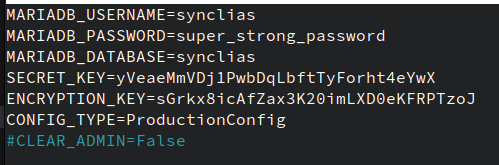
| Line | Meaning | Suggestion |
|---|---|---|
| MARIADB_USERNAME | Database Username | synclias |
| MARIADB_PASSWORD | Database Password | Anything you want |
| MARIADB_DATABASE | Database Name | synclias |
| SECRET_KEY | Browser Data Encryption Key | See below |
| ENCRYPTION_KEY | Database Entry Encryption Key | See below |
| CONFIG_TYPE | ProductionConfig | Leave as is |
| #CLEAR_ADMIN | <Leave as is/> | Used for resetting admin password |
Secret and Encryption Keys
During the early releases, there’s a limitation on these:
- Exactly 32 Characters long
- Uppercase, lowercase and numbers only Remember when you put them in, you don’t need quote marks around them, just the plain string
Sorry!
I know this is a pain, I’d suggest a password generator, such as the one at - 1PasswordYou should end up with something like this:
Starting it Up
Almost there!
Just run
docker compose up -d
And let it all come up.
Once it’s working, you can access it at http://<docker-host>:8000 or http://localhost:8000 if running locally
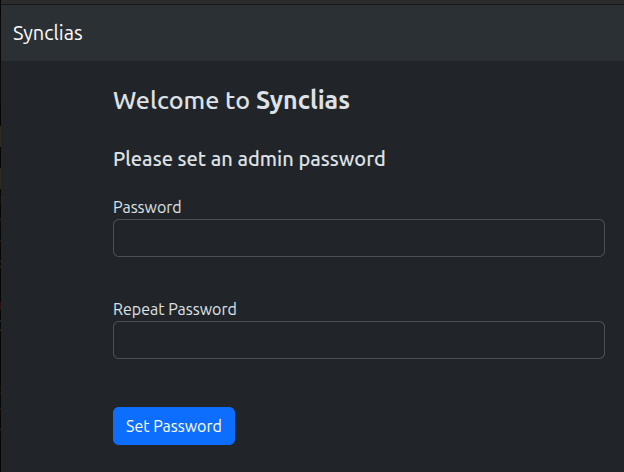
If you get a page like this, set a password and you’re all set to start configuring!