OPNsense User Access Setup
Categories:
Overview
Synclias requires API access to OPNsense, with permissions to view and edit Firewall Aliases and trigger a “reconfigure” to apply the changes
It assumes the VPN and Firewall Alias are already created as per that guide
This guide will:
- Create a group synclias_group with necessary pemissions granted to it
- Create a user account synclias as a member of the group
- Generate an API key/secret to allow Synclias to log in
This guide assumes access to the web interface with admin permissions
Create a Group
- Navigate to System -> Access -> Groups
- Click +
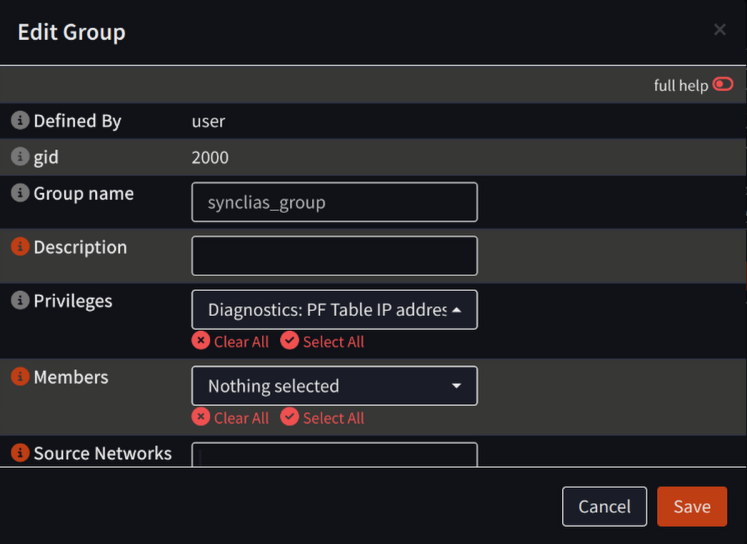
- Configure the new group with all settings at default, except:
- Group Name: synclias_group
- Privileges:
- Diagnostics: PF Table IP addresses
- Diagnostics: Show States
- Firewall: Alias: Edit
- Firewall: Alias
- Click Save .
Sadly, not all of the privileges fit in a screenshot, ensure you’ve got all four.
Create a User Account
- Navigate to System -> Access -> Users
- Click +
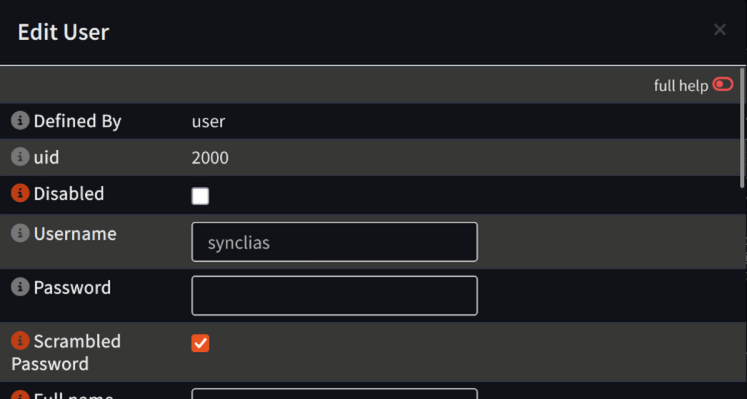
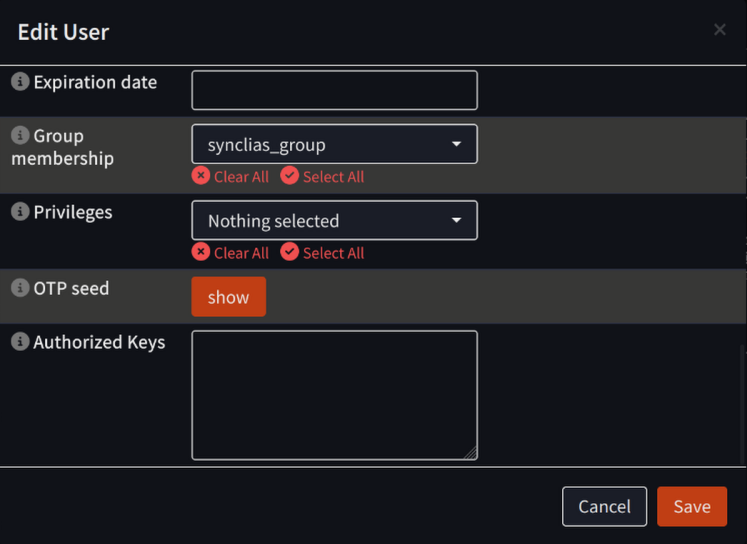
- Configure the new group with all settings at default, except:
- Username: synclias
- Scrambled Password: Checked
- Group membership: synclias_group
Top of Dialog:
Bottom of Dialog:
- Click Save
Generate API Key
- Navigate to System -> Access -> Users
- Locate the opn_alias user and in the Commands section click the button to Create and Download an API Key for this user (The icon looks like a rectangular ticket, and is to the left of the edit button)

- On the popup confirmation window, click Yes
- A text file will be downloaded containing “key=…” and “secret=…” lines, ensure to keep this safe