Definitive Guide to Sites
There’s a lot of things that can happen when trying to add a site.
This page can look scary, there’s a lot of options, you don’t need them all
Remember - once you lock a site in, it’s pretty solid.
And if you do get stuck, other users may already have a list they can give you
This guide tries to cover most scenarios, some steps won’t be necessary, but they’re there for completeness.
Be aware that clearing your cookies and restarting/trying another browser can really help
In testing a few users insists that a new site won’t hit the VPN for15 minutes after a Sync. They’ll report that they closed their browser, but couldn’t reproduce on a video call when the browser was closed.)
Flush States
In Settings, the Flush States option will flush any active connection on Sync For troubleshooting, this can clear up issues prevent them being hidden
Generally, you want:
- On for site testing
- Off at all other times
Scanner Issues
Sites that won’t Scan
Things to try:
- First off - be certain the site works over a normal full VPN client. If doesn’t, there’s nothing that can be done here.
- Adjust the Flush States option
- Try adjusting the User Agent in settings and rescan
- There’s lists of common browser agents at What is my browser.com
- Add the site as is to the list, Sync and try again
- Do a second sync, then try a forced refresh in your browser (Ctrl + F5/ Shift + F5/Command + F5 depending on your browser)
- If you were getting “flat out block” page in your web browser (e,g the page just says “403 Unauthorized” or plain “Not in your country” message) and you’ve run two Syncs -
- Ensure Flush States is on, and run another Sync
- Close your browser and open it again/try a different browser just for testing - sometimes “Established” TCP/IP will stick for a few minutes.
- You can check the IP of the site your browser is using from Developer Tools in the Browser and compare to the alias, but it’s easier just to proceed to the next step:
- If you’re still getting:
- Scan results back but it’s not fixing it, head down to Unsafe Scan
- An error (e.g. 403 etc) have a look at: Manually Looking for Site Domains
Unsafe Scan
Sometimes sites will use scripts to call extra domains, these won’t show in a normal scan, but probably will in an Unsafe Scan.
This type of scan will find every “http:// or https://” links in the page, you may, or may not, see extra domains in there.
- Revisit the Scanner page
- Uncheck the “Safe Scan” box
- Run the scan again - you should get a bigger list of domains
For guidance on which domains to add, refer to the Guidance on which domains to add page here
If that doesn’t do it after a Sync/Cookie Clear/Hard Refresh, have a look below at manually finding the domains.
Manually Looking for Site Domains
This is the most reliable way to do it if the scanner doesn’t work. It’s a bit of poking about but it’s easier than it looks.
The easiest way to find list of domains is from the web browser
-
Open the site (even if it doesn’t work)
-
Press F12 to open the Developer Tools in your browser
-
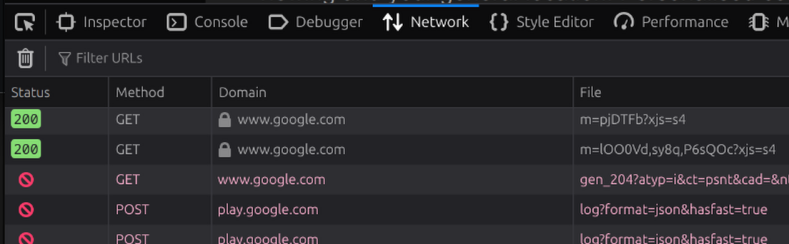
Find the “Network” Tab
-
Reload the page so that the Network tab shows all the connections
-
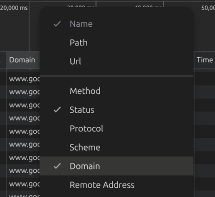
If you don’t have a “Domain” column in there, right click the columns at the top and add it in
-
Sort the Domain list alphabetically
-
Have a look through the list, you’ll see there’s lots of common site in there
-
If you’ve got an adblocker, you can ignore any lines that show up in red. That’s it doing it’s job
-
Select the domains you need - have a look at the Guidance on which Domains to Add section below, and then come back here once you’ve made your choices.
-
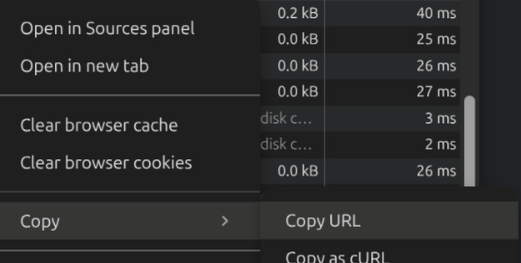
To copy the domain so you can paste it in, right click a domain and select “Copy -> Copy URL” then paste the full link Site -> Add Site function in Synclias to add it, it’ll work out the domain from the full link.
-
-
Once you’ve done that, run another Sync
-
Before you try to access the site again, it’s best to delete any cookies from the site, some mark your browser with a cookie that sticks, even if you’re going over the VPN.
-
Make sure the Sync is complete
-
In your Developer Tools in the browser:
- Depending on your browser:
- Firefox - Storage Tab
- Chrome Basked - Application Tab
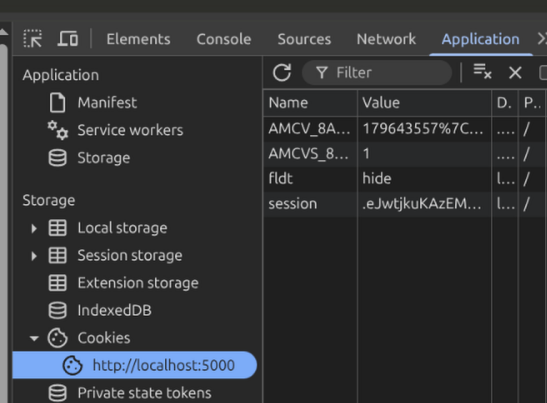
- Look for any cookies from the site
- Right click -> Delete/Clear them
- Depending on your browser:
-
Then hard refresh the browser (Ctrl +F5/Shift+F5/Command + F5 depending on your browser)
-